Campaigns & Calls
This guide walks the CallMineAI outbound calling engine from end to end: loading contacts, building a campaign, launching it, how the dialer and queue turn queued jobs into live phone calls, what happens during and after each call, and where to review the results.
All customer (vendor) screens live under /app:
/app/campaigns     Campaign list + wizard
/app/contacts      Contacts
/app/calls         Call history, transcripts, recordings
/app/analytics     Calling analytics dashboard
Real calls require live infrastructure
Placing real phone calls needs valid Twilio (or Plivo) credentials and a public HTTPS URL so the carrier can reach the app's TwiML/status webhooks. It also needs the scheduled tasks running — npm run worker or an equivalent cron (see The dialer & queue below). Without these, campaigns can be built and launched but no calls will actually dial.
Contacts & contact lists
/app/contacts
Contacts are the people a campaign calls. Add them one at a time or import a CSV (the importer maps name, phone, email, company headers). Phone numbers are normalized to E.164 and de-duplicated per vendor by (client_id, phone) — re-importing merges rather than duplicating. The number of contacts is capped by your plan's contacts limit.
Contacts can also be organized into contact lists and worked as a Quick CRM kanban pipeline (/app/crm), but for calling, what matters is that a contact exists so it can be attached to a campaign.
Building a campaign
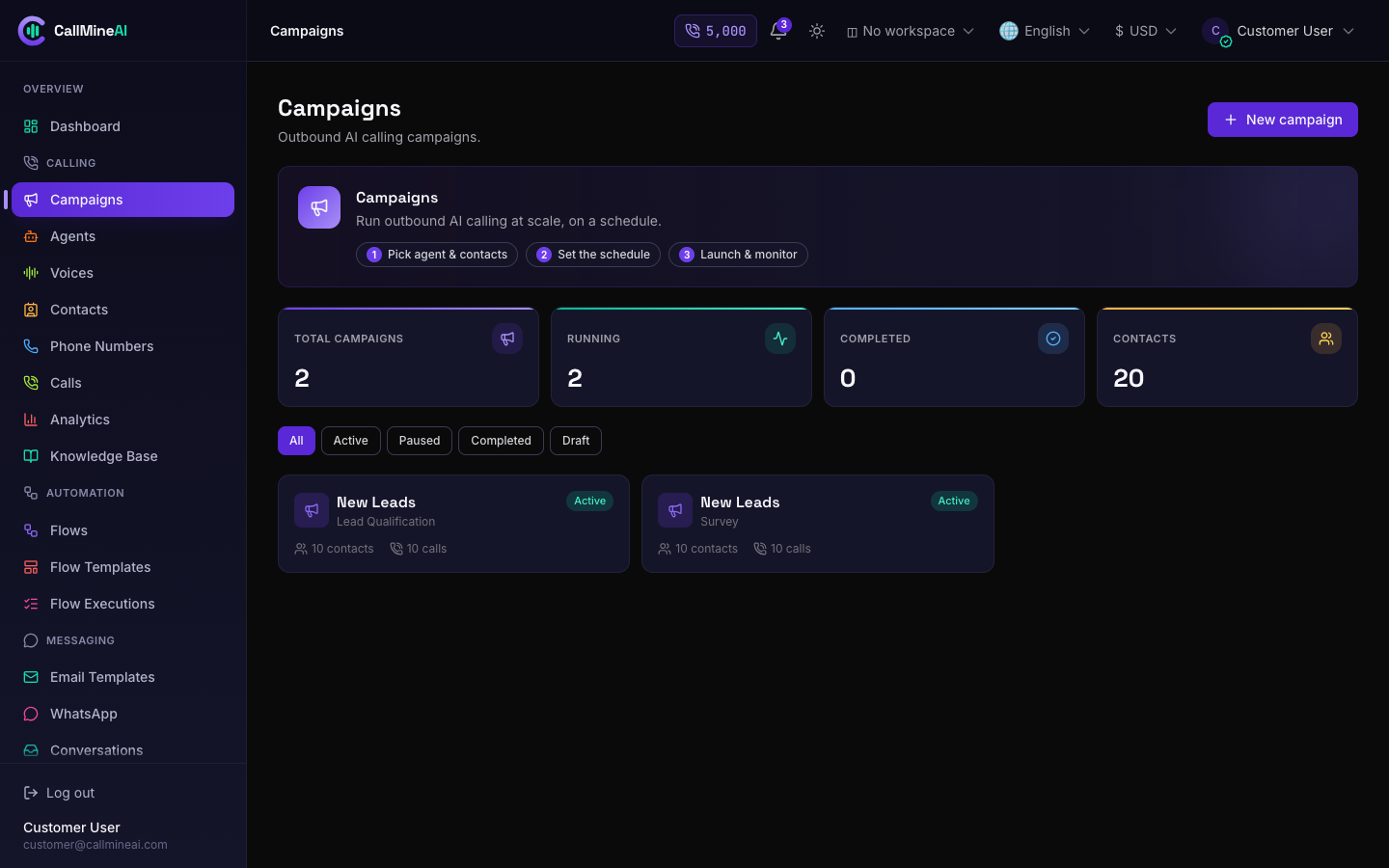
The campaigns list — status, progress and results per campaign.
/app/campaigns/create
The wizard walks through:
- Name & type — pick a campaign name, an optional goal, and a type:
lead_qualification,sales,support, orsurvey. - Agent — choose the AI agent that will run the conversation (voice + LLM + prompt + knowledge base). See Voice AI.
- Contacts — select specific contacts or select all in the workspace.
- Caller-ID number — choose the phone number the calls dial from.
- Retry settings — max retries and retry delay (defaults: 3 retries, 60-minute delay), plus an optional scheduled start time.
Saving creates the campaign as a draft and attaches the chosen contacts (each pivot row starts call_status = pending). Creating a campaign is gated by your plan's campaigns limit.
Launching
POST /app/campaigns/{campaign}/launch
Launch is only allowed when:
- The campaign has both an agent and a caller-ID number assigned.
- The campaign has at least one contact.
- Your workspace is KYC verified (enforced by the
kyc.verifiedmiddleware).
You also need available credits and to be within plan limits for the run to make progress. On launch, the app fans out one queued call job per not-yet-queued contact (scheduled_for = the campaign's scheduled start, or now) and flips the campaign to active. Nothing dials yet — the dialer picks these up on its next tick.
KYC + credits are prerequisites
A vendor that is not KYC-verified cannot launch. A vendor with a zero credit balance will have its call jobs fail with insufficient_credits rather than dial. See Billing & Credits.
The dialer & queue
The dialer is a scheduled task that drains the queue, bounded by real concurrency capacity.
# Every minute, overlap-protected by a TTL lock in the `cache` table:
curl -X POST -H "X-Cron-Secret: $CRON_SECRET" https://your-domain.com/api/cron/dispatch
Each tick, dispatchDue() (src/lib/services/dialer.js):
- Computes available slots = ElevenLabs pool capacity − current load, then caps that by
CALL_DIALER_CONCURRENCY(default 60). The ElevenLabs key-pool concurrency is the real throttle. - Claims that many due queue rows (row-locked, moved to
processing). - Runs
placeCall()for each claimed row.
placeCall() then, per call:
- Drops back to pending if the campaign was paused.
- Fails/retries with
insufficient_creditsif the vendor's balance is<= 0. - Resolves the agent's engine (voice + telephony combo). For ElevenLabs-voiced engines it acquires a pool slot — if the pool is saturated the job is requeued for a later tick. OpenAI-voiced engines skip the ElevenLabs cap.
- Creates the
Callrecord (statusringing) and asks the telephony provider to dial, passing provider-specific voice and status webhook URLs. - On a failed placement, releases the slot and retries with backoff (
failOrRetry); a job retries while attempts< CALL_MAX_RETRIES, otherwise it is marked failed.
The scheduler is mandatory
/api/cron/dispatch only fires if something calls it every minute. Without that, launched campaigns sit idle. Run the bundled worker:
npm run worker
or point a crontab / hosted scheduler at the endpoint. Result processing and call analysis run inline on the carrier's status webhook, so no separate queue worker is needed. In production supervise the worker with PM2 or systemd — see Deployment.
Admins can watch and intervene on the queue at /admin/call-queue (retry / cancel) and pause or resume whole campaigns at /admin/batch-jobs. See the Admin Guide.
The call itself
When the callee answers, the telephony provider (Twilio) fetches the voice webhook and the conversation loop runs entirely over TwiML:
- The agent's greeting is spoken (
<Say voice="Polly.Joanna">), personalized with contact variables (e.g.{{name}}). - A
<Gather input="speech" speechTimeout="auto">block captures the caller's reply — Twilio does the speech-to-text and posts theSpeechResultback. - The transcript so far is fed to the agent's LLM (via the AI provider registry, using the agent's prompt + tone + goal + knowledge base), which produces the next line.
- Each exchange is appended to the call's transcript/turns. The loop continues until the LLM emits the
[END_CALL]token or thecalling.max_turnscap (default 12) is reached, then the call hangs up. - If recording is enabled, Twilio records the call and posts the recording URL back.
The Plivo engine mirrors this loop with Plivo XML (<Speak> / <GetInput inputType="speech">).
After the call
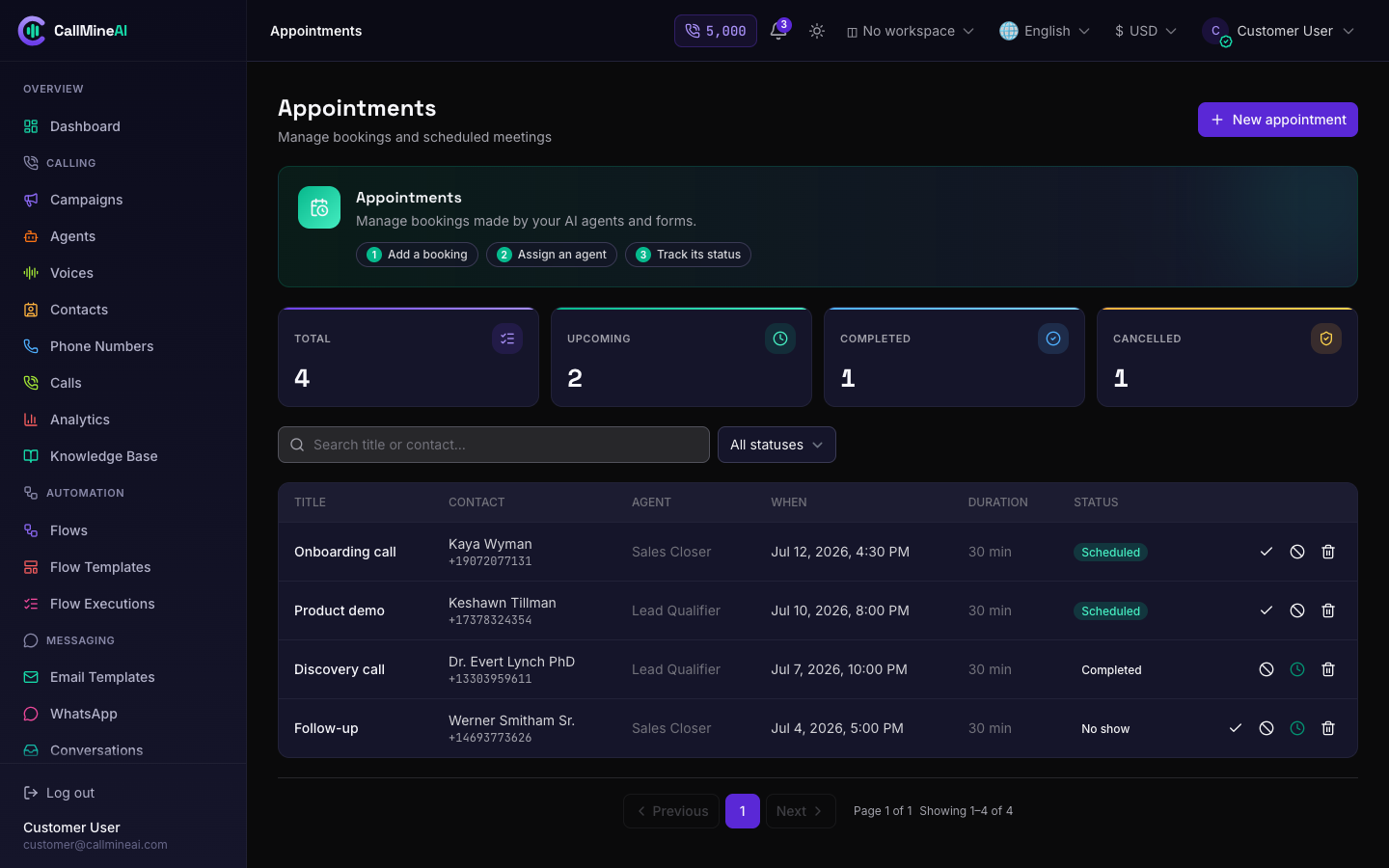
Appointments booked by agents during calls appear in the calendar.
Twilio posts a final status to the status webhook, which dispatches ProcessCallResultJob. It is idempotent (Twilio may post completed more than once) and:
| Step | Detail |
|---|---|
| Status mapping | completed → completed, busy → busy, no-answer → no_answer, failed/canceled → failed |
| Duration | Stores duration_seconds and ended_at |
| Slot release | Releases the ElevenLabs concurrency slot |
| Credit charge | Connected calls are charged via the ledger, ≈ 1 credit per minute (ceil(seconds / 60)) |
| Queue advance | Marks the job completed, or retries/fails it |
| Campaign stats | Recomputes totals and auto-completes the campaign when the queue empties |
For connected calls, AnalyzeCallJob then runs post-call intelligence via CallAnalysisService:
- Transcription — uses the live transcript; if only a recording exists and an OpenAI key is configured, it falls back to Whisper.
- Sentiment —
positive/neutral/negative. - Lead qualification — Hot / Warm / Cold (or
unqualified), plus a short summary, derived by the LLM. When no LLM provider is configured, a safe heuristic fallback is used.
Reviewing calls & analytics
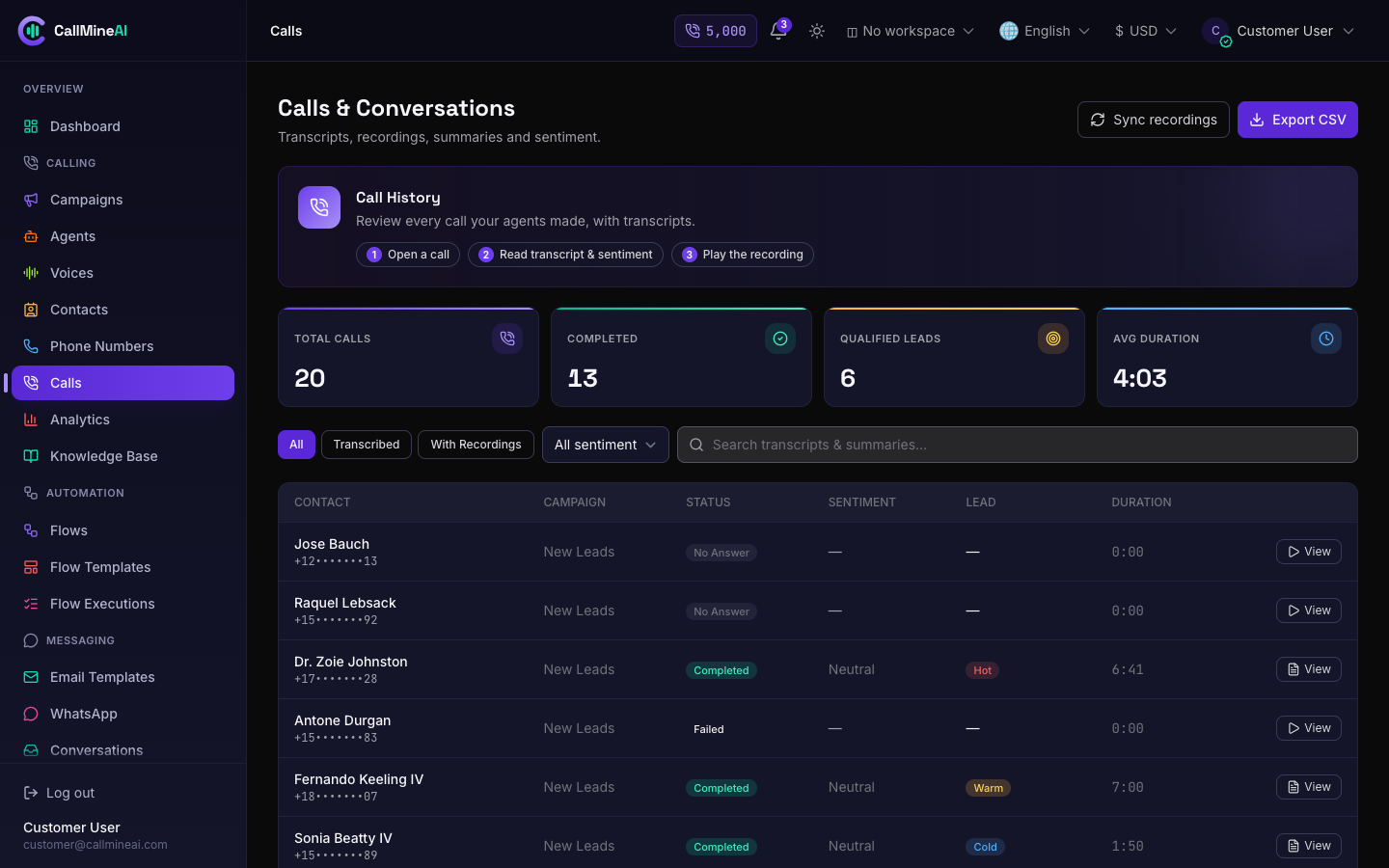
Every call is logged with recording, transcript, sentiment and qualification.
/app/calls
/app/calls/{call}
/app/analytics
The Calls screen lists call history with tabs (all / transcribed / recordings) and filters by status, sentiment, and search. Open a call to see its detail — audio player, full transcript, summary, sentiment and lead qualification. You can sync recordings from Twilio and export calls to CSV.
The Analytics dashboard shows KPIs (total calls, success rate, qualified leads, average duration) with month-over-month trend, plus charts: calls-by-day, lead distribution (Hot / Warm / Cold), sentiment breakdown, and campaign success — over a 7 / 30 / 90-day window.
Webhooks fired
Configure outbound webhooks under Integrations (/app/integrations). Deliveries are signed with an HMAC-SHA256 X-CallMineAI-Signature header and retried on non-2xx responses.
| Event | When |
|---|---|
call.completed | After every connected call is analyzed |
lead.qualified | Additionally, when the call qualifies as hot or warm |
Both payloads include call_id, campaign_id, contact_id, status, duration_seconds, sentiment, qualification, summary, and recording_url. Webhooks can be filtered per campaign and fired against a specific test endpoint from the Integrations screen.
Related guides
- Voice AI — agents, voices, knowledge base
- Telephony — numbers, Twilio/Plivo engines, webhooks
- Billing & Credits — how calls consume credits
- Admin Guide — call monitoring, queue and batch-job oversight