Customer Guide
This guide is a complete tour of the CallMineAI customer workspace at /app. It is written for the people who log in to run calling campaigns — build AI agents, import contacts, buy phone numbers, launch campaigns and read the results.
Deeper topics have their own pages:
Signing in & the workspace
Open the app and sign in with your email and password. Customer accounts land in the workspace at /app.
/app/dashboard
The workspace has three fixed regions:
- Sidebar (left) — navigation grouped into Overview, Calling, Automation, Messaging, Integrations, Tools, Billing, Reports, Support and Account. Some groups (API Keys, SIP Trunks, Messaging) only appear when your plan includes those add-ons.
- Topbar — page title, a credit chip showing your live calling-credit balance, and your profile menu.
- Main area — the current page.
Tips
The credit chip in the topbar is a shortcut: click it to jump straight to Billing & Credits.
If your account belongs to a larger team, what you can see and do depends on the role assigned to you — see Roles & Permissions.
Dashboard
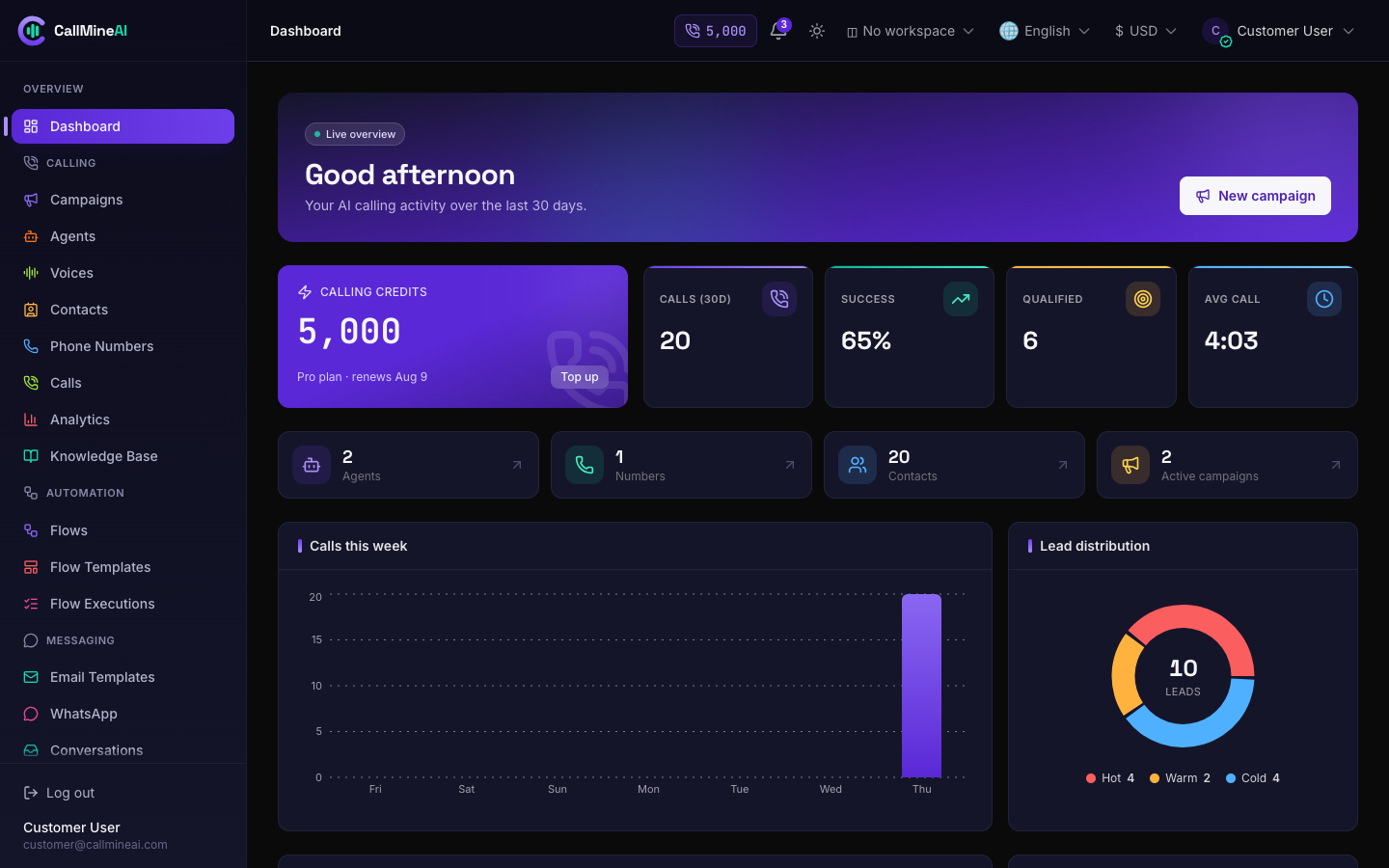
The workspace home — credits, recent calling activity, success rate and lead mix.
/app/dashboard
The dashboard is your at-a-glance control room for the last 30 days.
- KPIs — total calls, calls in the last 30 days, success rate, qualified leads (Hot + Warm), average call duration, plus counts of agents, active phone numbers, contacts and active campaigns.
- Charts — calls per day (last 7 days) and a Hot / Warm / Cold lead distribution.
- Recent calls — the latest calls with contact, status, sentiment and duration.
- Onboarding checklist — five setup steps that light up as you complete them: add an agent, add a phone number, add contacts, create a campaign, and have credits available.
- Credit balance — mirrored in the topbar credit chip.
Work down the onboarding checklist to get your first campaign live.
Calling
The Calling group in the sidebar is the heart of the product. It contains Campaigns, Agents, Voices, Contacts, Phone Numbers, Calls, Analytics and Knowledge Base.
| Area | URL | What it does |
|---|---|---|
| Campaigns | /app/campaigns | Build and launch outbound calling campaigns |
| Agents | /app/agents | Create the AI callers |
| Voices | /app/voices | Browse the voice library |
| Contacts | /app/contacts | Your call list / CRM data |
| Phone Numbers | /app/phone-numbers | Caller IDs you dial from |
| Calls | /app/calls | Transcripts, recordings, outcomes |
| Analytics | /app/analytics | KPIs and charts |
| Knowledge Base | /app/knowledge-base | Reference material for agents |
Two of these are covered in depth on their own pages:
- Building agents, picking voices and managing the knowledge base → Agents & Voices
- Building, launching and monitoring campaigns → Campaigns & Calls
The rest are covered below.
Contacts
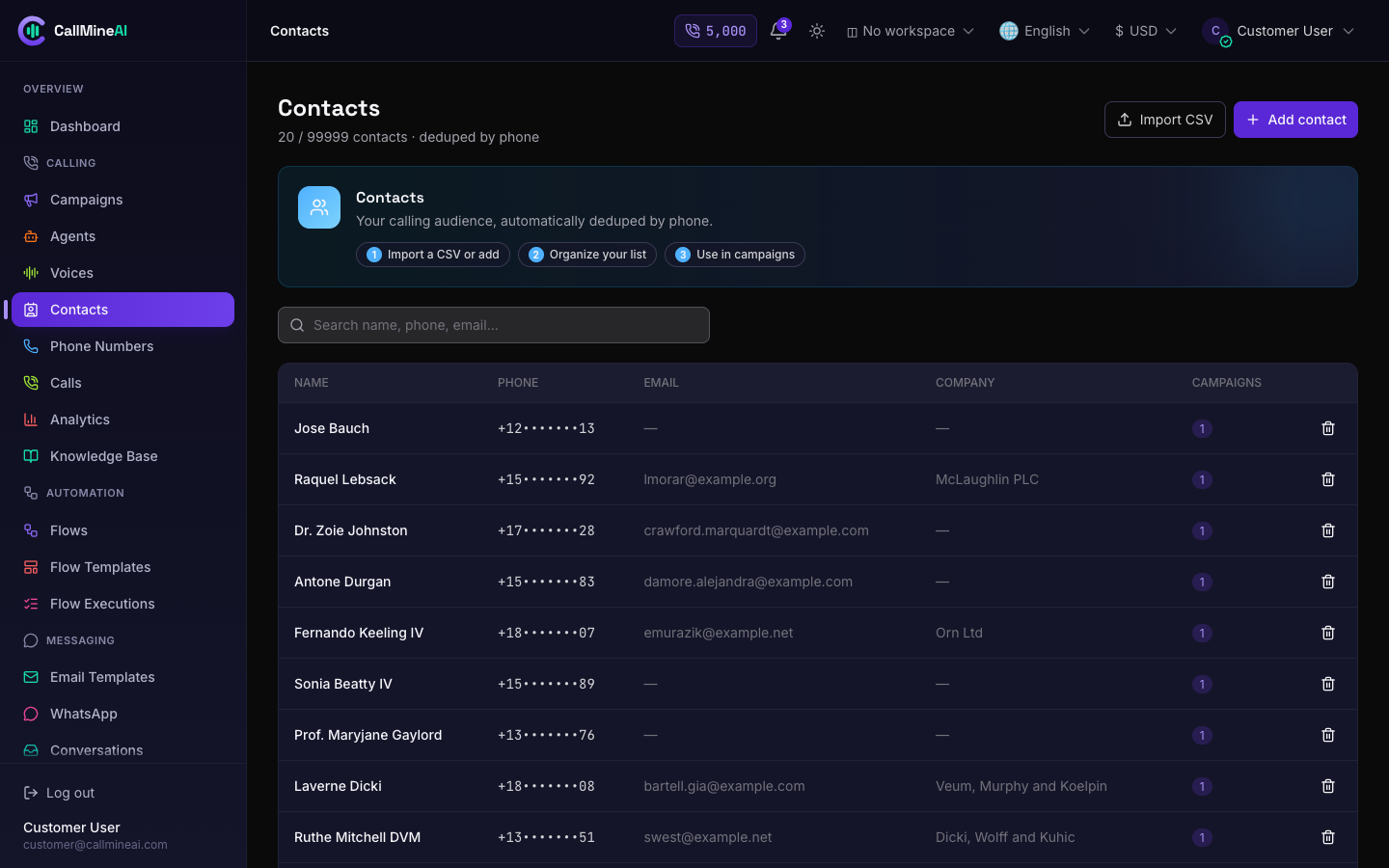
Contacts list with tags, source and pipeline stage.
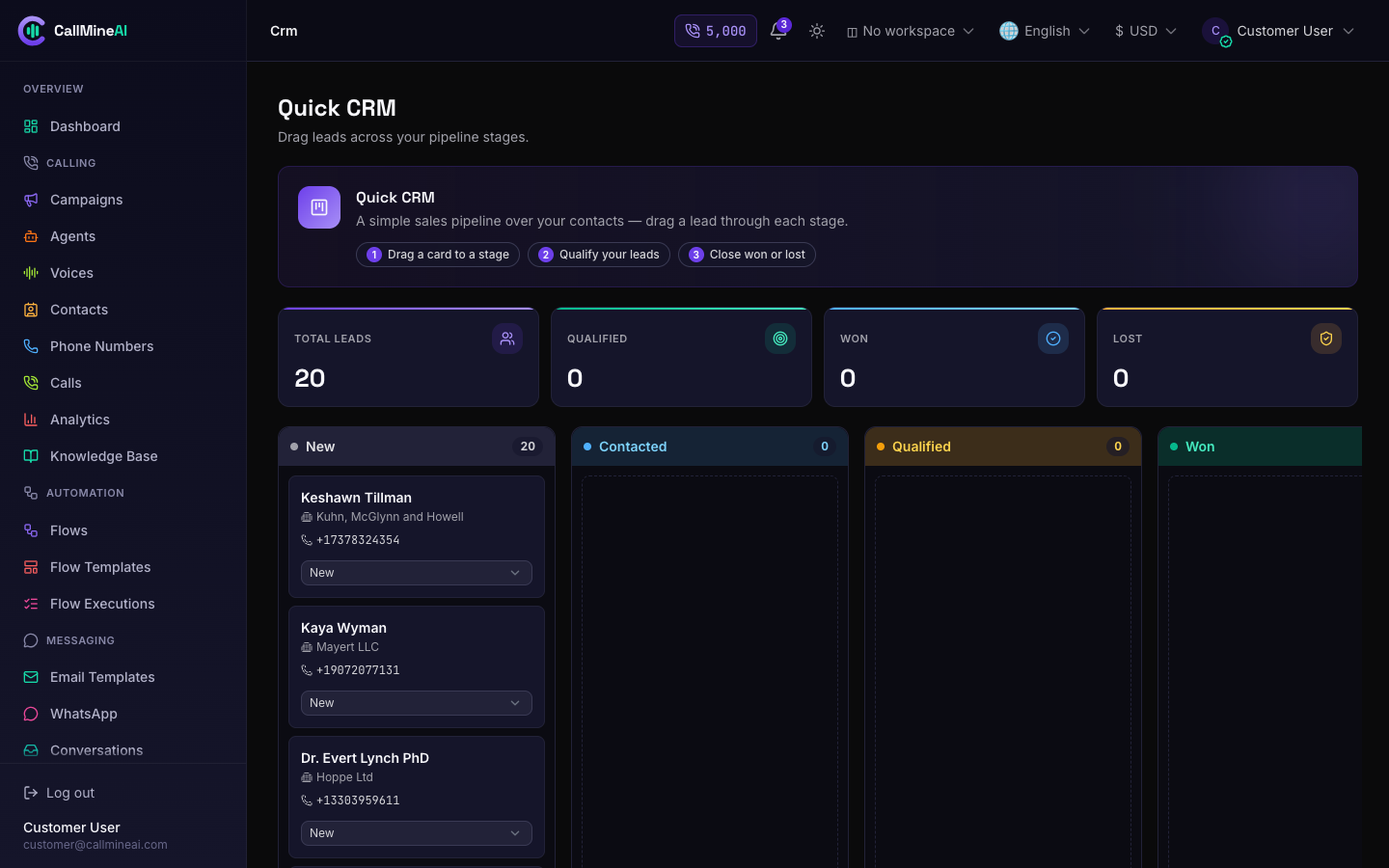
The CRM pipeline board — drag leads between stages.
/app/contacts
Contacts are the people your agents call. For privacy, phone numbers are shown masked in the list (e.g. +1•••••••89).
Add a single contact — provide a phone number (required) and optionally a name, email and company. Numbers are normalised to E.164 (a plain 10‑digit US number becomes +1…).
CSV import — upload a .csv file with columns for name, phone, email and company. The importer reports how many rows were added, merged, skipped and (if applicable) went over plan limit.
Deduplication
Both single‑add and CSV import dedupe by phone number within your workspace. If a contact with the same phone already exists, its details are merged into the existing record instead of creating a duplicate.
Plan limit
Your plan caps how many contacts you can store (the contacts limit). When you hit it, new contacts are rejected and CSV rows beyond the limit are counted as over plan limit. Upgrade your plan to add more — see Billing & Credits.
Phone Numbers
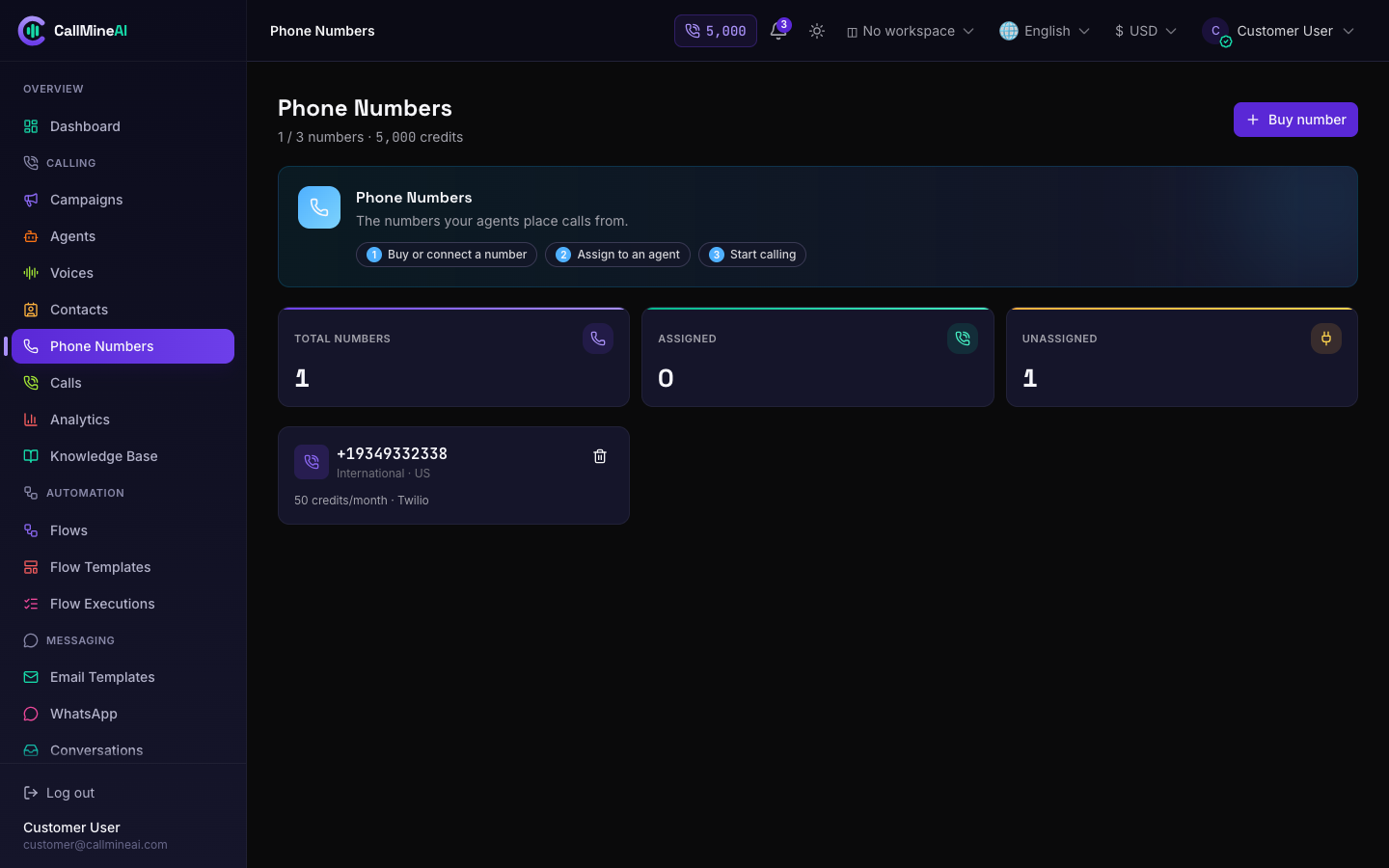
Numbers owned by the workspace, used as campaign caller IDs.
/app/phone-numbers
Phone numbers are the caller IDs your campaigns dial from. The page lists your active numbers with type, country and monthly cost, plus stats for total / assigned / unassigned.
You add a number in one of two ways:
- Search & buy via Twilio — when Twilio is configured, search by country, area code and type (local, toll‑free or mobile), then buy an available number.
- Add manually (BYO) — when Twilio is not configured, record a number you already own.
Cost & requirements
- Each number costs 50 credits per month (the platform default), charged immediately on purchase.
- Buying a number requires your workspace to be verified — see Verification / KYC below.
- The purchase is also subject to your plan's phone‑number limit and a sufficient credit balance.
Releasing a number sets it inactive (and releases it on Twilio when applicable).
Calls
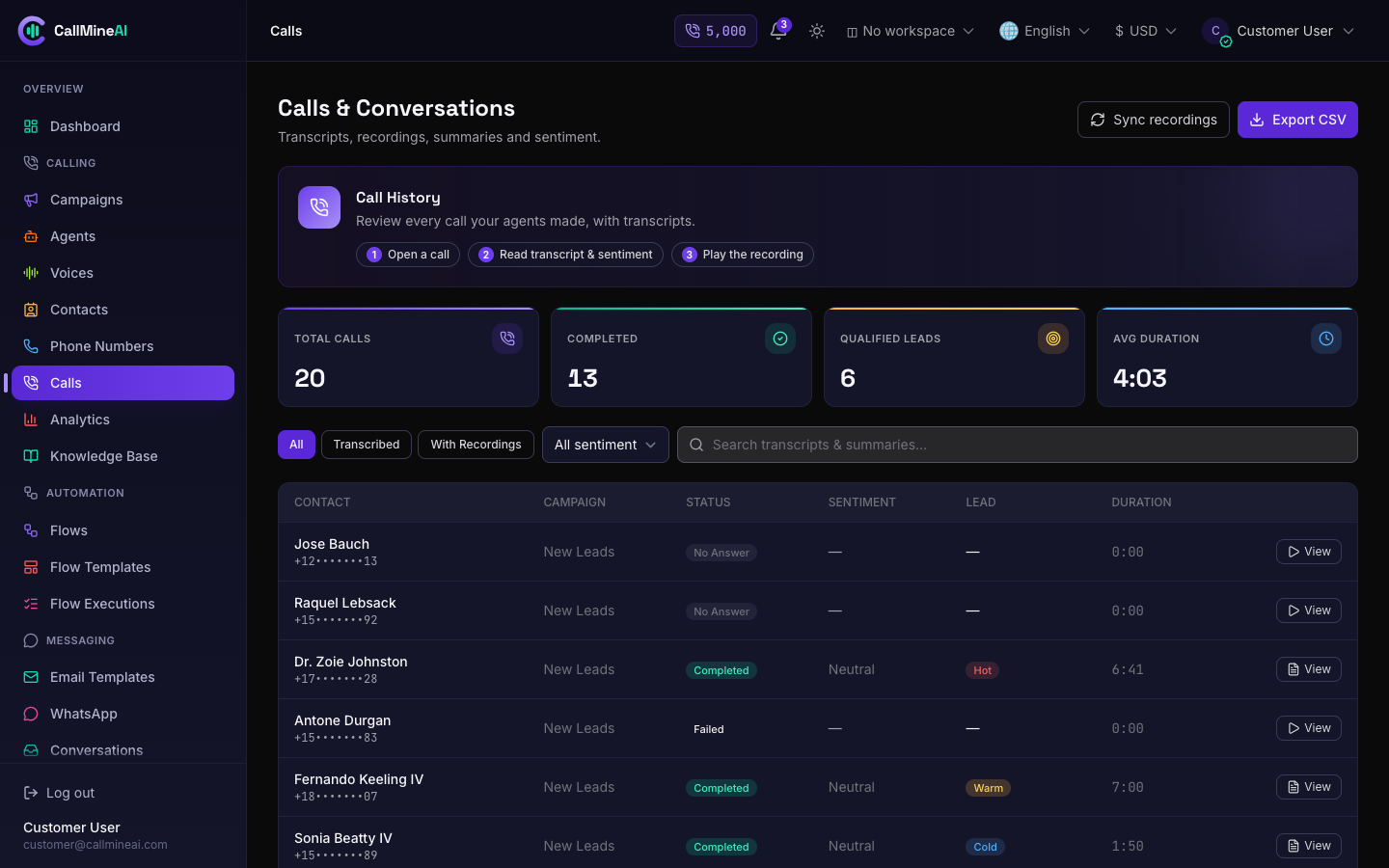
Call history with outcome, sentiment, qualification and cost.
/app/calls
Every dial your agents make is logged here. Use the tabs and filters to slice the list:
- Tabs — All, Transcribed (calls with a transcript) and Recordings (calls with an audio recording).
- Filters — by status, by sentiment, and a free‑text search across transcript and summary.
Open a call to see its detail: full transcript, AI summary, sentiment, lead qualification (Hot / Warm / Cold), recording playback and duration.
Export — download all calls as CSV:
/app/calls/export
The export includes date, campaign, agent, contact, status, duration, sentiment, qualification and summary.
If you use Twilio recordings, Sync recordings pulls recording URLs onto matching call records.
For the full campaign→call pipeline, see Campaigns & Calls.
Analytics
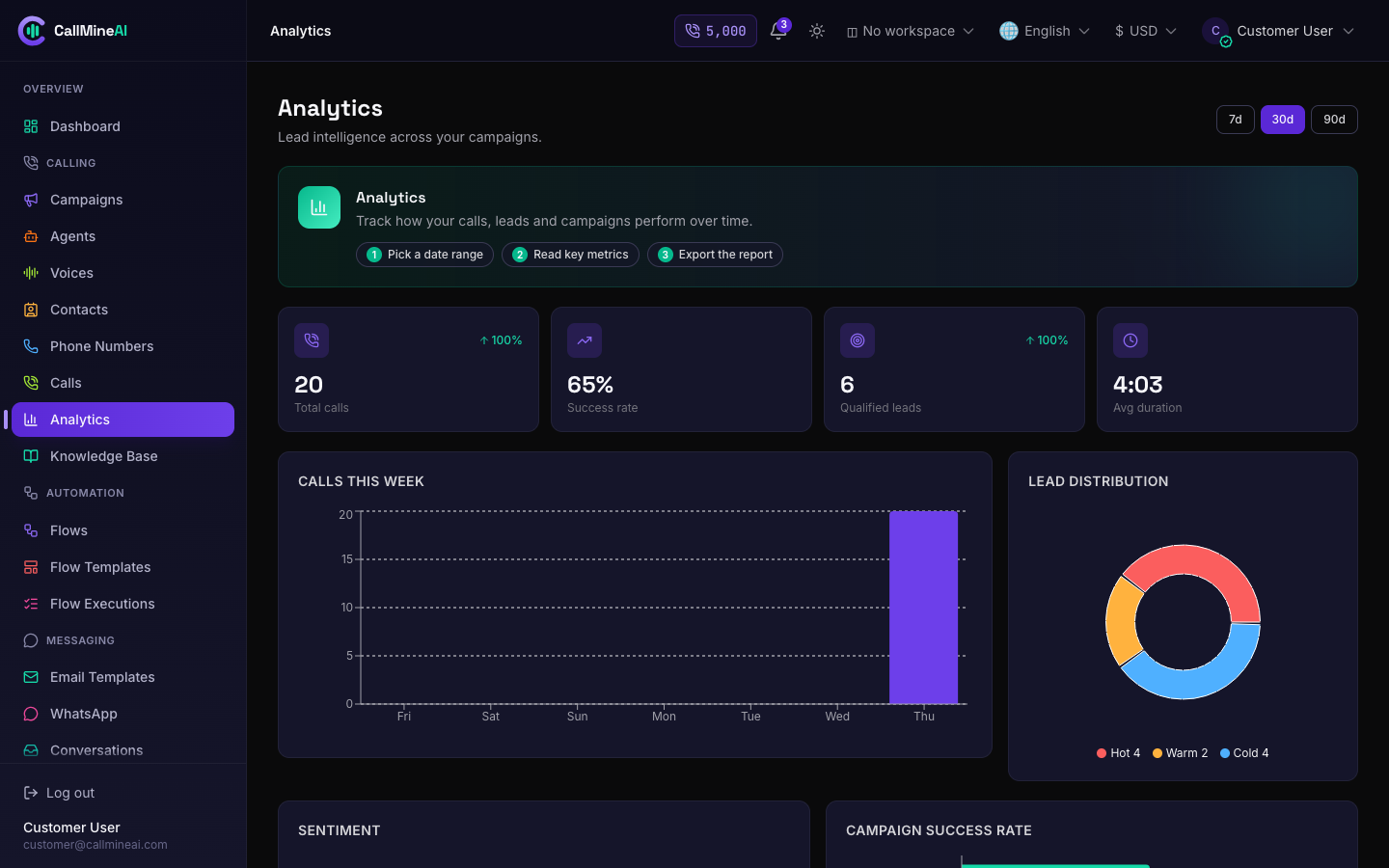
Calling analytics — volume, outcomes and qualification trends.
/app/analytics
The analytics page turns your calls into KPIs and charts over a selectable window of 7, 30 or 90 days.
- KPIs — total calls, success rate, qualified leads, average duration, plus month‑over‑month trend arrows for calls and qualified leads.
- Charts — calls per day, lead distribution (Hot / Warm / Cold), sentiment breakdown (positive / neutral / negative) and per‑campaign success rate.
Leads are scored into three buckets — Hot, Warm and Cold — from each call's qualification. Hot and Warm together count as "qualified".
Integrations / webhooks
/app/integrations
Outbound webhooks push calling events to your own systems (CRM, Slack, Zapier, etc.).
Create a webhook with a name and a target URL, choose which events to receive, and optionally scope it to a single campaign. Each webhook gets a signing secret (prefix whsec_) so you can verify that deliveries genuinely came from CallMineAI.
Available events:
| Event | Fires when |
|---|---|
call.completed | A call finishes |
lead.qualified | A call is scored Hot or Warm |
campaign.status_changed | A campaign is launched, paused, resumed or completed |
agent.performance | Agent performance data is emitted |
Use Test to send a sample call.completed payload to your endpoint. The page also tracks last delivery time, last status and total delivery count per webhook.
Tips
Deliveries are signed with an X-CallMineAI-Signature header (HMAC‑SHA256 of the body using your webhook secret). Verify it on your side before trusting a payload.
Billing & credits
/app/billing
Calling runs on credits — roughly 1 credit per minute of calling. The Billing page shows your credit balance, credit‑purchase packages, credit history (every grant and charge), plan usage bars and your invoice/transaction history.
To top up, request a credit package; it is added to your balance once payment is confirmed. Full detail is on the Billing & Credits page.
Verification / KYC
/app/verification
Some high‑risk actions require your business to be verified. Upload documents here and track their review status.
Document types:
| Type | Document |
|---|---|
| Photo ID | Government‑issued photo ID |
| Business registration | Business registration certificate |
| Tax certificate | Tax / VAT registration document |
| Caller authorization | Caller‑ID authorization letter |
Each uploaded document moves through pending → approved / rejected. Your overall workspace status is one of unverified, pending, verified or rejected. Uploading a document moves an unverified or rejected workspace to pending.
Verification gates
Until your workspace is verified you cannot:
- Buy phone numbers (
/app/phone-numbers) - Launch campaigns (
/app/campaigns)
Complete verification early so these aren't blocked when you're ready to go live.
Team
/app/team
Invite teammates into your workspace and control what each can do. Members are assigned a role (Owner, Admin, Manager, Viewer, or a custom role if your plan allows), and each role grants a set of permissions across modules such as calls, billing, team and API.
Manage roles and the permission matrix at:
/app/team/roles
Team seats and custom roles are plan‑gated. Full detail — including exactly which permission controls which page — is on the Roles & Permissions page.
Settings & profile
- Settings (
/app/settings) — workspace‑level preferences. - Profile (
/app/profile) — your own name, email and password. - Notifications (
/app/alerts/notifications) — announcements and alerts; unread ones show a badge on the topbar bell. - Audit log (
/app/audit-log) — a record of actions in the workspace (available to workspace administrators).
Demo mode
If your instance is running in demo mode, a banner appears at the top and write actions are disabled so you can explore safely.